Both Flexxbuy and Coach Financing merchants use Byzly. Sign in using the access information in your welcome email.
Open Credit Select Plus
- In Byzly, open Financing Hub → Connections.
- Find Credit Select Plus under Configured.
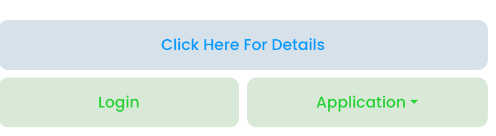
- Select Login to open the CSP login screen. Your welcome email also contains CSP access information.
On the CSP card, Click Here For Details opens the product overview. Application → View opens your customer application landing page. Those destinations serve different purposes from the merchant Login button.
Navigate the CSP portal
The CSP home screen is the Applications list. Select an application's ID to open its file. The top navigation also includes:
- My Info: your merchant/location details and shortcuts for starting or sharing an application.
- Analytics: charts labeled Funded Amount and Submit Count.
- Activity: activity for your merchant account, with application numbers as subjects. Your feed does not include other locations.
Use Apply on the Applications screen to start or share a new application. To review an existing customer's offers, open that customer's application file.
Get access help
Use Forgot Password on the Byzly login page if needed. If your access is missing or the reset does not resolve the issue, contact info@flexxbuy.com. The assistant cannot activate or inspect your account.
Partner access is separate: use the partner portal and partners@flexxbuy.com for partner access help.