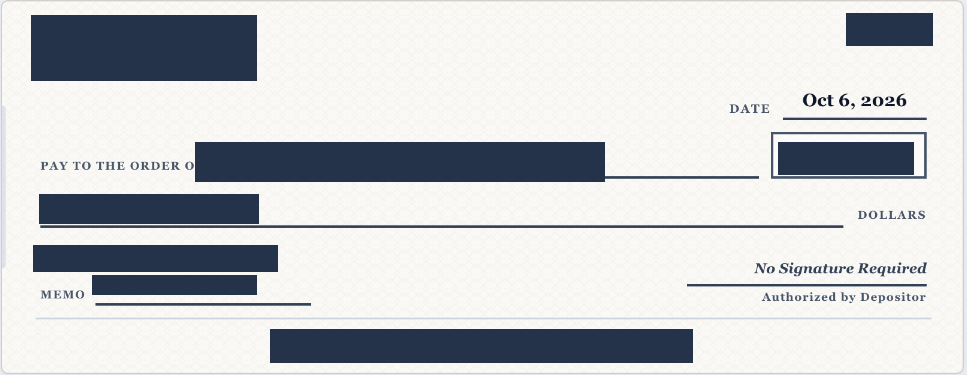
Draft Pay is available to Grow and Pro merchants. It creates a digital check image through a customer authorization workflow. The merchant can print or download the check image for deposit. Separate provider approval is not required.
Create the request
- In Byzly, select Go to DraftPay. The DraftPay workspace contains Dashboard, Payors, Invoices and Check Drafts.
- Use Add Payor when you need to add the customer, or select an existing payor when creating the invoice.
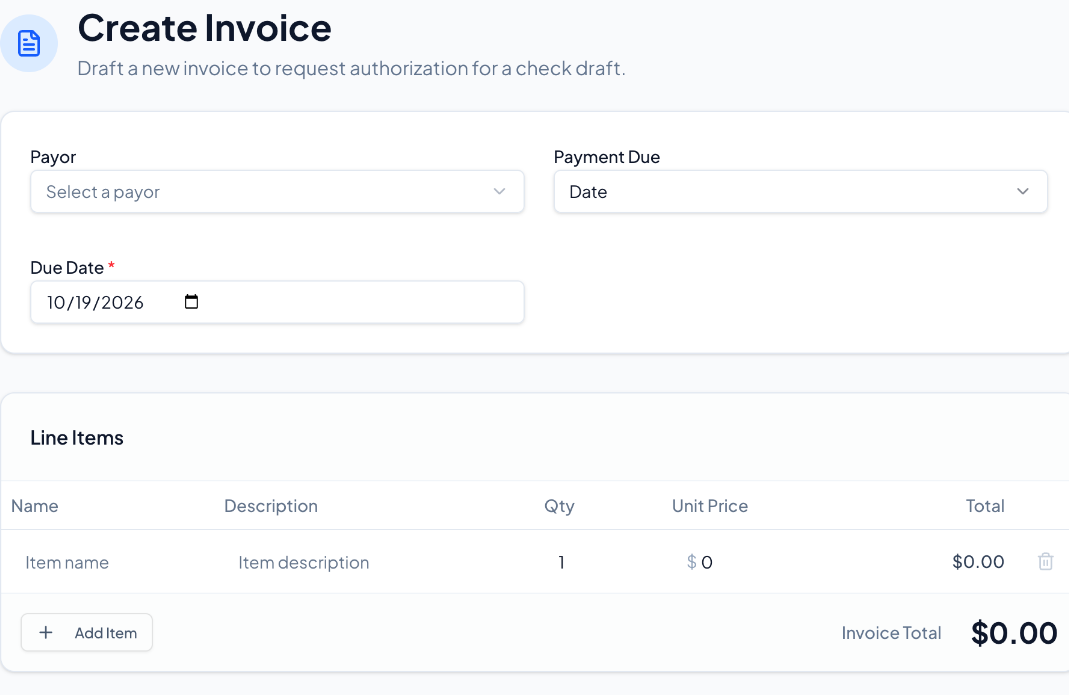
- Select Create Invoice. Choose the Payor and the applicable Payment Due setting. For Date, enter the due date.
- Enter the line-item name, description, quantity and unit price. Use Add Item for additional items, and review the invoice total.
- Add any Notes to Payor. Review the displayed authorization terms and merchant acknowledgment before selecting Save Draft Invoice.
DraftPay also displays Payment Due choices for Completion of the Service and Funding of Loan. If you need help choosing or using those settings, contact the team.
Send it to the payor
Open the invoice and select Send to Payor. The customer uses the link in the received invoice email to review the invoice, review the terms and complete the payment-authorization form.
The merchant acknowledgment and the customer's authorization are separate. The customer enters bank information in the secure product workflow—not in this chat.
Review and download the draft
After the customer authorizes the invoice, open Check Drafts and select the relevant draft. Review the check preview. Where Download PDF is available, select it to open the check PDF; the viewer provides download and print controls.
An authorization confirmation or a generated check image does not mean funds have cleared. Clearing occurs through your bank, not within Byzly or Flexxbuy. If you need help with deposit, a draft's status or a processing problem, contact info@flexxbuy.com.
DraftPay Reports is a separate item in the main Byzly menu. DraftPay invoices are distinct from Payment Hub invoices and from CSP loan applications. Never send bank-account or routing numbers through chat.