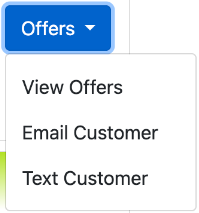
Merchants can review the specific pre-approved offers presented to a customer and resend those offers when the customer needs them again.
View the offers
- Open the CSP Applications list.
- Select the customer's application ID to open the file.
- In the Credit Select Plus provider section, open Offers → View Offers.
- Review the displayed offers and their terms. Clicked identifies the offer the applicant selected.
Send the offers again
On the same application file, choose Offers → Email Customer or Offers → Text Customer. These buttons send directly to the email address or phone number already on the applicant's file. They do not open a message composer or recipient-entry dialog. Confirm you are on the correct applicant's file before selecting one.
These controls resend existing offers. To send a new application, use the Apply menu on the Applications screen instead.
When to contact support
If an offer is missing, expired, blank, inaccessible or has disappeared, contact info@flexxbuy.com. Resending does not establish that an expired offer has been restored. If contact information needs attention, ask the team for help.
The assistant cannot inspect an application, send offers for you, restore an offer, determine approval or confirm funding. Preapproval and selecting an offer do not mean the lender has funded the loan or that the merchant has collected payment.