Payment Hub tools collect customer payments through connected payment services. They are separate from CSP financing applications and from Draft Pay's check-draft invoices.
Payment Options lists your connected Payment Hub services. If no services are connected, the list can be empty. For connection setup, missing access or a payment error, contact info@flexxbuy.com.
Products
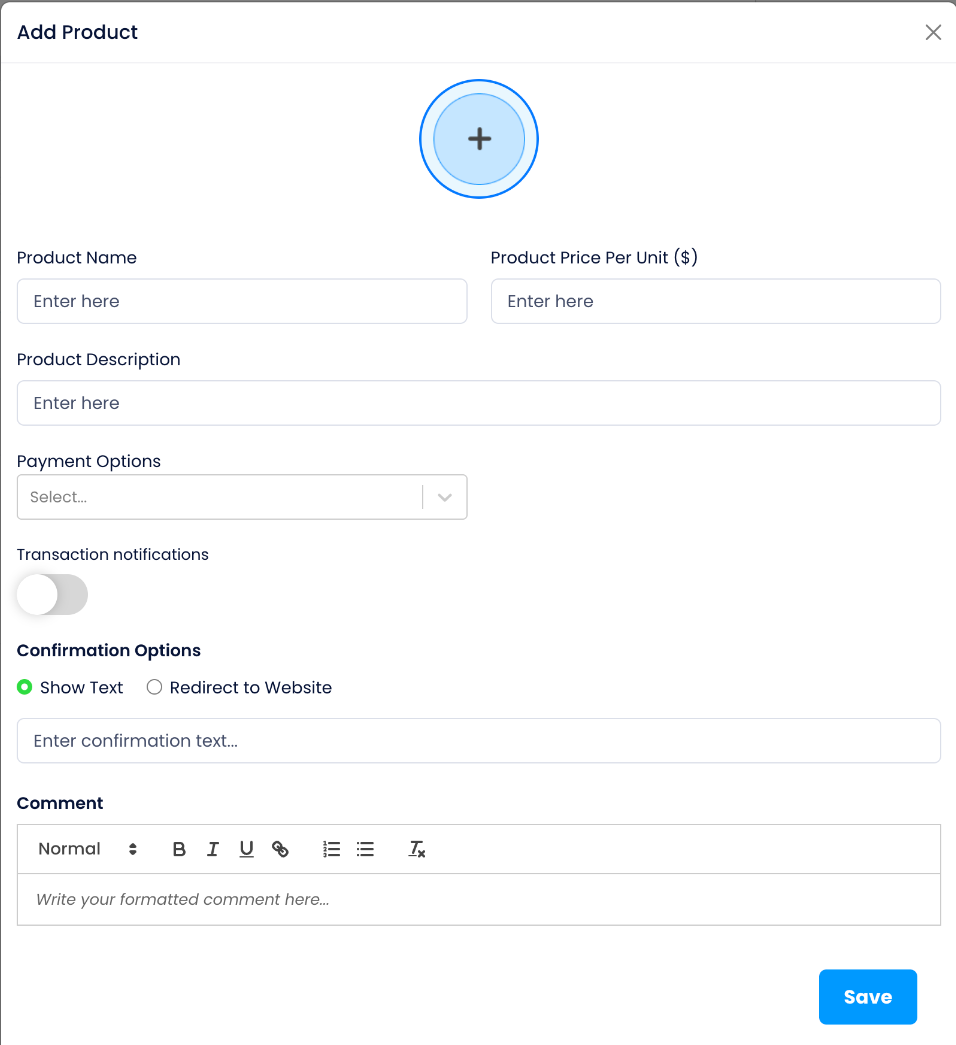
- Open Payment Hub → Products and select Add.
- Enter the Product Name, Product Price Per Unit ($) and Product Description.
- Choose an available Payment Option.
- Review the confirmation controls. Show Text provides a confirmation-text field; Redirect to Website provides a redirect-URL field.
- Review the form before using Save.
The plus at the top opens a file picker for the logo. If you already added a logo in Setup, it appears here. The form also includes Transaction notifications and a Comment field.
Quick Payments
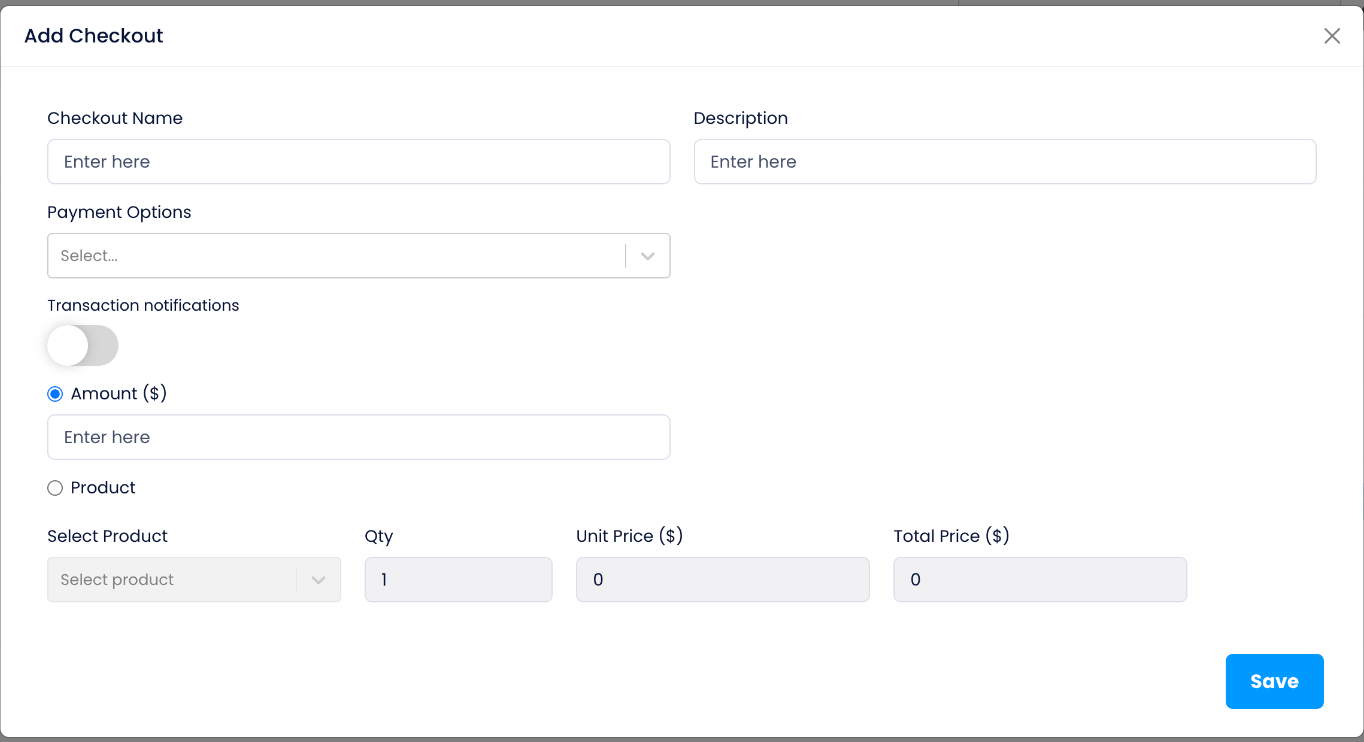
- Open Payment Hub → Quick Payments and select Add.
- Enter a Checkout Name and Description, then choose the available Payment Options.
- Choose Amount ($) to enter an amount, or Product to select a product and review its quantity and price fields.
- Review the checkout details before using Save.
If you need help locating or sharing a saved payment link, contact the team.
Invoices
Open Payment Hub → Invoices and the Create Invoice form. Enter the customer and invoice details shown, including the customer name/contact information, invoice name, due date and description.
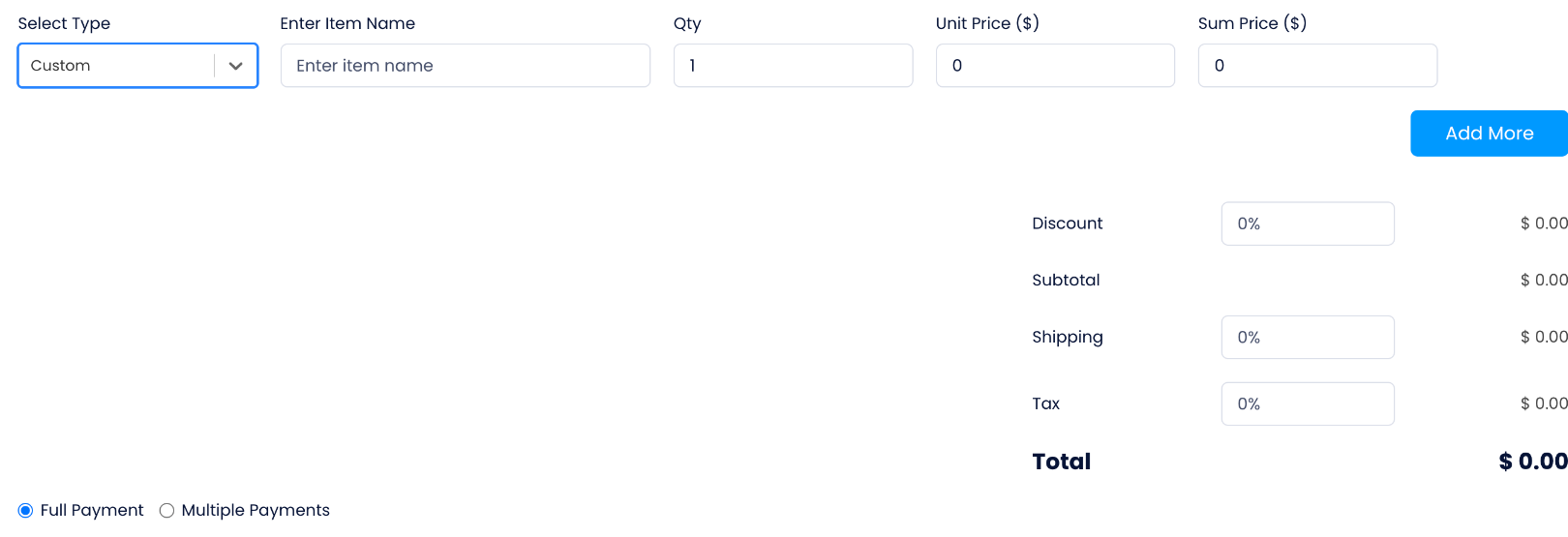
For each line item, choose Product to use a listed product or Custom to enter an item name. Review Qty, Unit Price () * * and * * SumPrice(). Use Add More for another item. Review adjustments and the total before proceeding.
The form provides Full Payment and Multiple Payments choices, Payment Options, and Save as draft and Send Email controls. Multiple Payments is a separate invoice option; do not treat it as the Virtual Terminal's recurring-payment feature. Ask the team for help with an unfamiliar payment arrangement or an invoice that is not working.
Virtual Terminal and recurring payments
Open Payment Hub → Virtual Terminal. The form first asks whether you have an invoice number. Yes shows an invoice selector. No shows a Product / Service and Price ($) entry.
The form also contains a Recurring Payment option. Byzly manages the cadence and instructions; the connected provider processes the payment. Recurring payments can be edited in Byzly. For the correct management path on your account, changes you cannot locate, or processing problems, contact the team.
Find a transaction
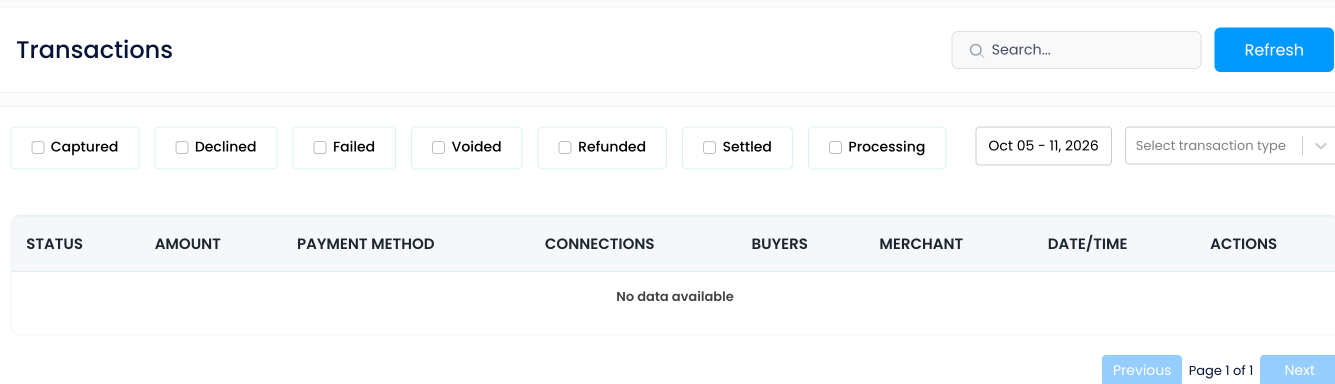
Open Payment Hub → Transactions. The list provides Search, Refresh, status checkboxes, a date-range control and a transaction-type selector. Use those controls to locate the relevant record.
For a failed payment or an unfamiliar transaction result, contact info@flexxbuy.com. Do not send payment credentials or bank details through chat.