
This guide walks through:
-
Logging into CSP
-
Understanding your dashboard and navigation
-
Sending applications
Step 1: Log into CSP
-
From your Byzly dashboard, click Financing Hub → Credit Select Plus.
-
Log in using your merchant credentials (same email associated with your Flexxbuy account).
-
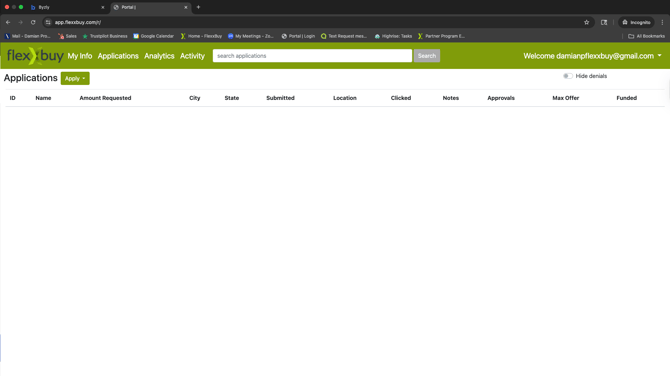
Once logged in, you’ll arrive at your Application Dashboard.
Step 2: Get to Know the Layout
Your top navigation menu includes:
| Menu Item | What It Does |
|---|---|
| My Info | Your company profile and contact info |
| Applications | Start or view applications |
| Analytics | View funding stats and analytics |
| Activity | Communicate directly with Flexxbuy |
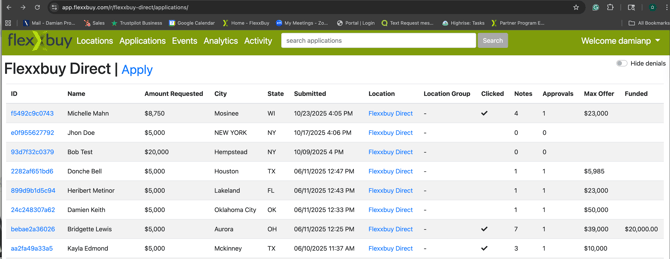
Step 3: Understanding the Application Dashboard
| Status | Description |
|---|---|
| Amount Requested | Dollar amount entered on application |
| Submitted | Time application was submitted |
| Clicked | Customer has clicked or accepted an offer |
| Max Offer | Highest dollar amount offer made |
| Funded | Amount funded after final approval |
Step 4: Sending an Application from CSP
-
On the applications dashbaord, click Apply.
-
Choose how to send the application (can be sent via email or text)
-
Enter email address or phone number, then click Send.
-
The customer receives an application link by email or text message.
-
You’ll get notified once the application is submitted.
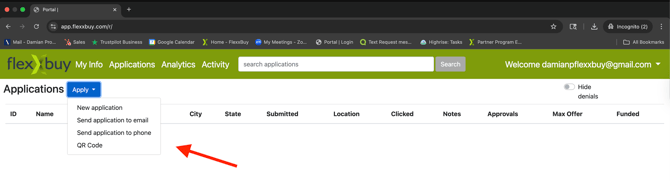
You can also generate a QR code to share with applicants. Or you can select "new application" if you are completing on behalf of the customer.
Next Step: Managing Offers, Communication, and Payments